ADSG 2 Documentation
Browser Support:
- Chrome
- Firefox
- Opera
- Edge
- Safari
General Feature Overview
Files: open images, directories, URLs, data URLs, drag and drop, save (PNG, JPG, BMP, WEBP, animated GIF, TIFF, JSON (layers data), print.
Edit: undo, cut, copy, paste, selection, paste from the clipboard.
Image: information, EXIF, trim, zoom, resize (Hermite resample, default resize), rotate, flip, color corrections (brightness, contrast, hue, saturation, luminance), automatic color adjustment, grid, histogram, negative.
Layers: multi-layer system, differences, merging, flattening, and transparency support.
Effects: normal Map, black and white, blur (box, gaussian, stack, zoom), bulge/pinch, denoise, desaturation, dither, dot screen, edge, emboss, enrich, gamma, grains, grayscale, heatmap, jpg compression, mosaic, oil, sepia, sharpen, solarize, tilt shift, vignette, vibrance, vintage, blueprint, night vision, pencil, also instagram filters: 1977, aden, clarendon, gingham, inkwell, lo-fi, toaster, valencia, x-pro ii.
Tools: panel, pencil, brush, magic wand, eraser, fill, color picker, letter, crop, blur, sharpener, desaturation, clone, borders, sprites, keypoints, color zoom, change color, restore transparency, content fill, AI Image Generations
Help: keyboard shortcuts, translation.
Canvas Area — Main Editing View
The large white/checkerboard area in the center
This is your working area.
-
The checkerboard pattern indicates a transparent background.
-
All visible work you do happens here.
-
You can drag, draw, place text, etc.
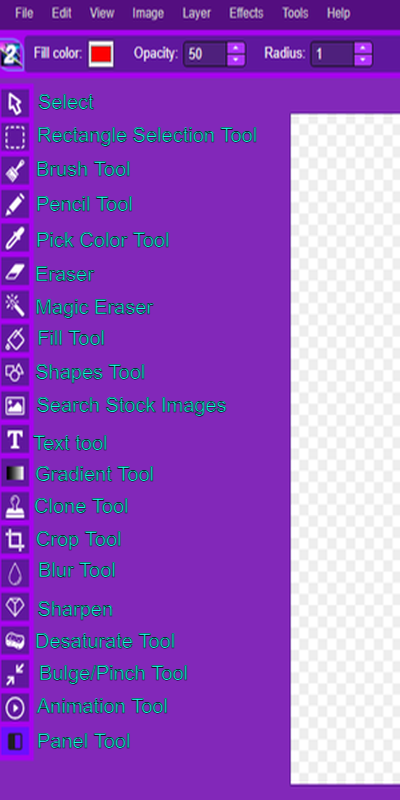
Left Sidebar — Primary Tool Palette
Vertical set of icons on the left
This is your toolbox — each icon represents a tool.
Example Tools (top-to-bottom):
| Icon | Tool | Description |
|---|---|---|
| Rectangle | Selection Tool | Drag to select a region |
| Brush | Brush Tool | Freehand drawing |
| Eraser | Eraser | Remove pixels |
| Paint Bucket | Fill | Fill with color |
| Eyedropper | Color Picker | Sample color from canvas |
| Text | Text Tool | Add / edit text |
| Shape | Shape Tool | Draw rectangles/circles |
| Crop | Crop Tool | Cut to size |
Tool Palette Quick Overview
“The left sidebar contains all drawing and editing tools. Hover over each icon to see its name and use it to interact with the canvas. Tools include selection, brushes, fill, text, shape, crop, and more.”
Top Toolbar — Global Controls
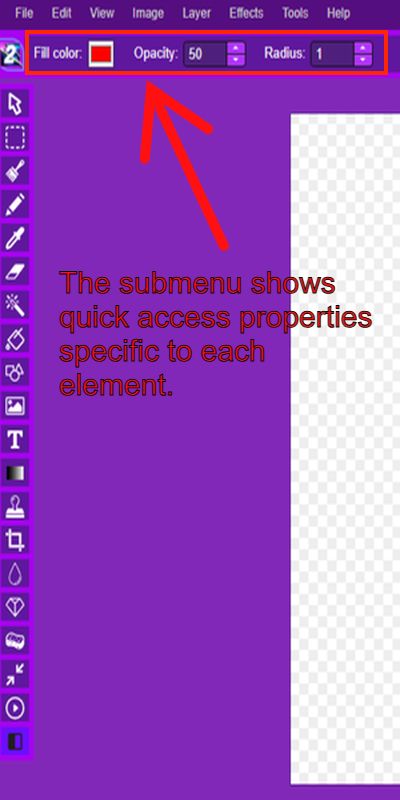
Runs across the top of the screen (purple bar)
Common tools and controls:
| Icon / Area | Purpose |
|---|---|
| File | New, Open, Save projects |
| Edit | Undo, Redo, Preferences |
| View | Show/hide guides, zoom |
| Image / Layer / Effects | Apply filters, transformations |
| Opacity / Radius | Adjust brush or fill tool properties |
| Color Picker | Select the current color |
Note:
-
This is your main program navigation — like a menu bar.
-
Much of the app’s general functionality and image settings happen here.
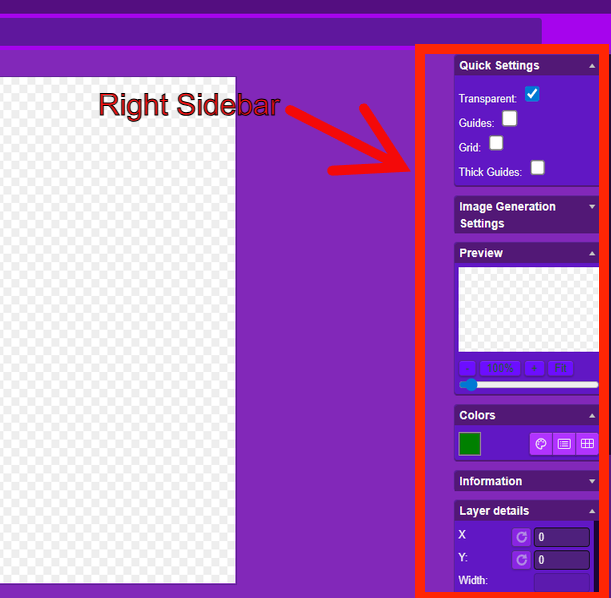
Right Sidebar Layer Settings
“When a tool or element is selected, the right sidebar displays relevant settings like opacity, size, and position. You can also toggle grid lines and transparency guides.”
Right Sidebar — Settings & Properties
The tall vertical pane on the right
Preview
-
Small live view of your entire canvas
Colors
-
Displays the active Color Picker & Palettes
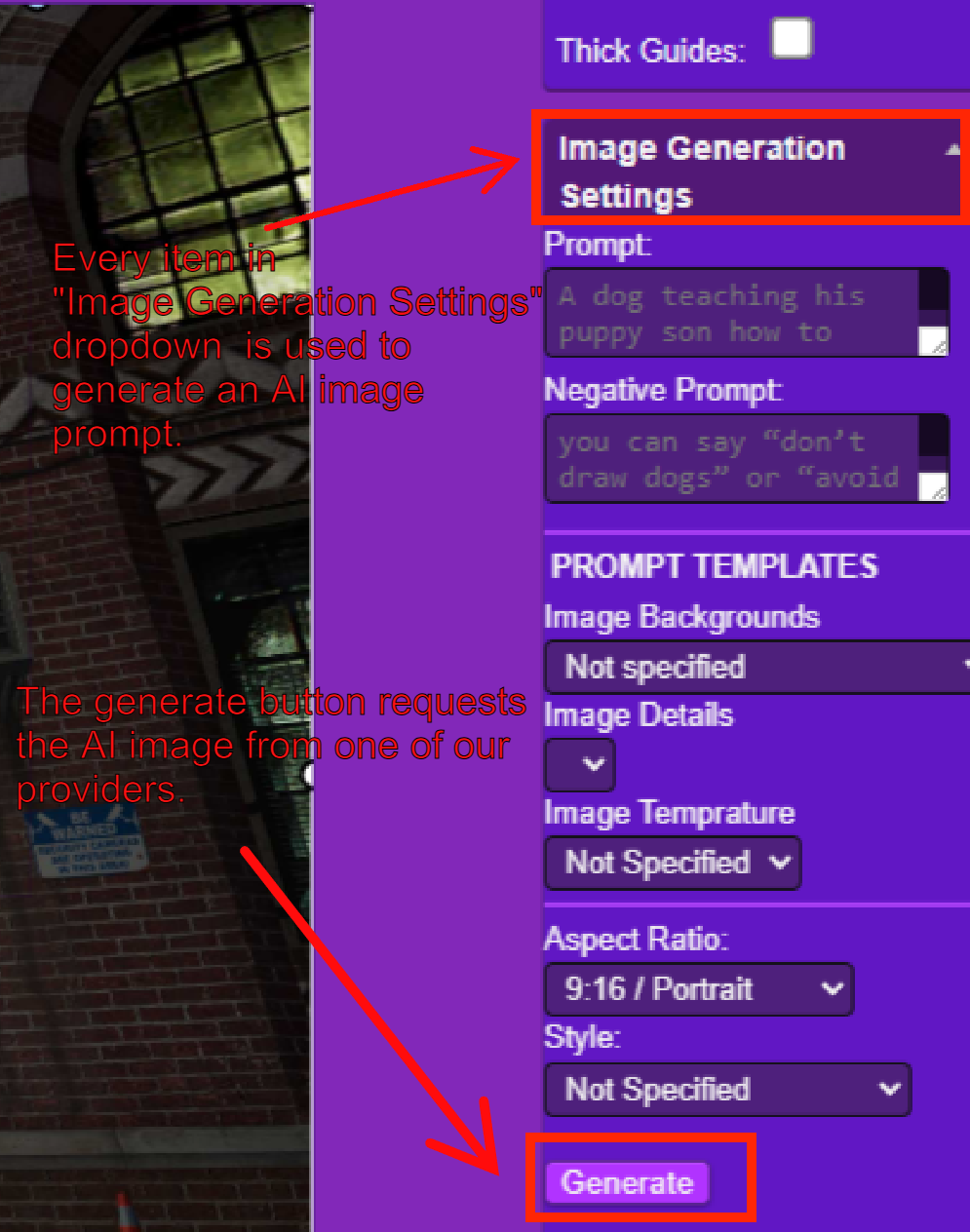
Image Generation Settings
-
Controls for AI tools or export settings
Information / Layer Details
| Property | Meaning |
|---|---|
| X / Y | Position coordinates |
| Width / Height | Size of active element |
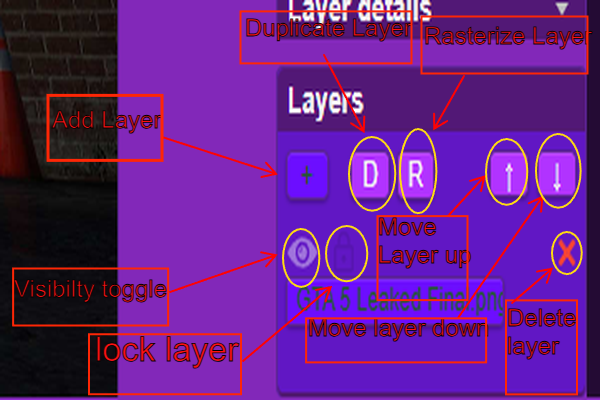
This area changes depending on what you last selected — if you click text, it may show text settings; if you click a layer, it shows layer info.
Quick Settings
| Setting | Purpose |
|---|---|
| Transparent | Toggles transparency |
| Guides / Grid | Helps align objects |